Proton on Applications outside of Steam
When you have an application that you are wanting to run on Linux but the program in question has designed and compiled for Windows, it can be a little disheartening to think about the idea of wrangling Wine.
Fortunately; there has been a fair amount of development in this area with Proton, this is specifically been focused on games, specifically games on Steam, but despite this the broad nature of what these can be like means that the viable domain is also broad. Proton has utility outside of its original use case.
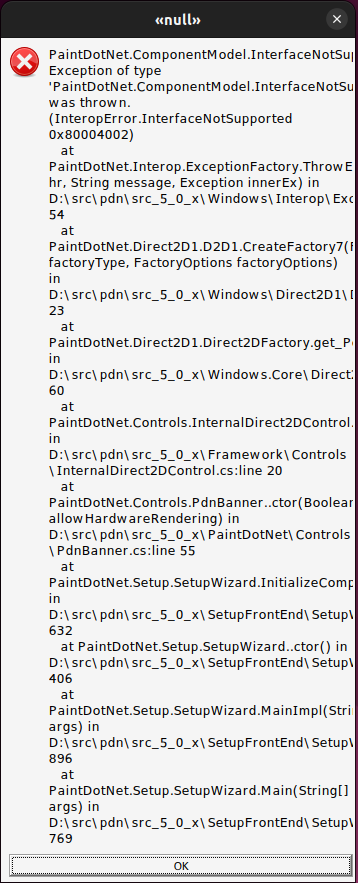
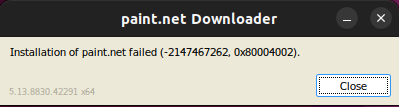
I find that this is more than workable with most older programs that use common graphical bindings such as OpenGL, DirectX, or Vulcan. Where you will run into issues is with programs that make use of things like ‘.NET’ panels, windows and elements, or if there is dependencies upon a more obtuse resources within Windows. Installers being involved don’t help too much either.
I have found the best way to work with this is to work from with the directory of the application you are wanting to run, and to keep the locations that remain the same recorded somewhere. We are going to be setting the location variables that Proton is going to use and then run Proton with the application as a parameter.
The first variable we need to assign the location of the Steam client on your system to ‘STEAM_COMPAT_CLIENT_INSTALL_PATH’. All things being default; on Debian based systems this path should be “~/.local/share/Steam/”.
The bash variable ‘STEAM_COMPAT_DATA_PATH’ will have to be set to the location where ‘Wine’ exists on your system, should you already have it, by default this has the directory “~/.wine”.
An good way of finding the location of your Proton install is; in your Steam library, find the version of Proton that you are wanting to use, right click on it.
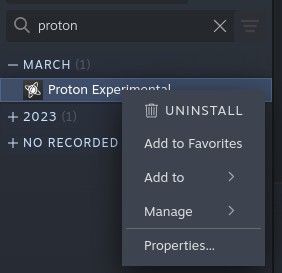
Select ‘Properties…’, this should open the properties window, select ‘Installed Files’, and in that section click the ‘Browse…’ button. This will have opened the directory containing the ‘proton’ file whose location we need.
The ‘proton’ python file is run with the parameter ‘run’ and then the program you are wanting to run.
The variable can be set, and the python program can be run all in the same line. The final command, in its entirety should look something like the following:
STEAM_COMPAT_CLIENT_INSTALL_PATH=~/.local/share/Steam/ STEAM_COMPAT_DATA_PATH=~/.wine /mnt/drive-id/SteamLibrary/steamapps/common/Proton\ -\ Experimental/proton run example.exe